
Download PS1 BIOS for ePSXe, DuckStation & RetroArch

If your emulator shows a black screen or says “no BIOS loaded,” the issue is simple. The required file is missing or not set correctly.
A PlayStation emulator needs a BIOS file to start games. Without it, games will not boot, no matter what settings you change.
This guide gives you everything in one place. You’ll learn which BIOS file to use, how to set it up, and how to fix common errors fast.
What is the PS1 BIOS & Why Do You Need It?
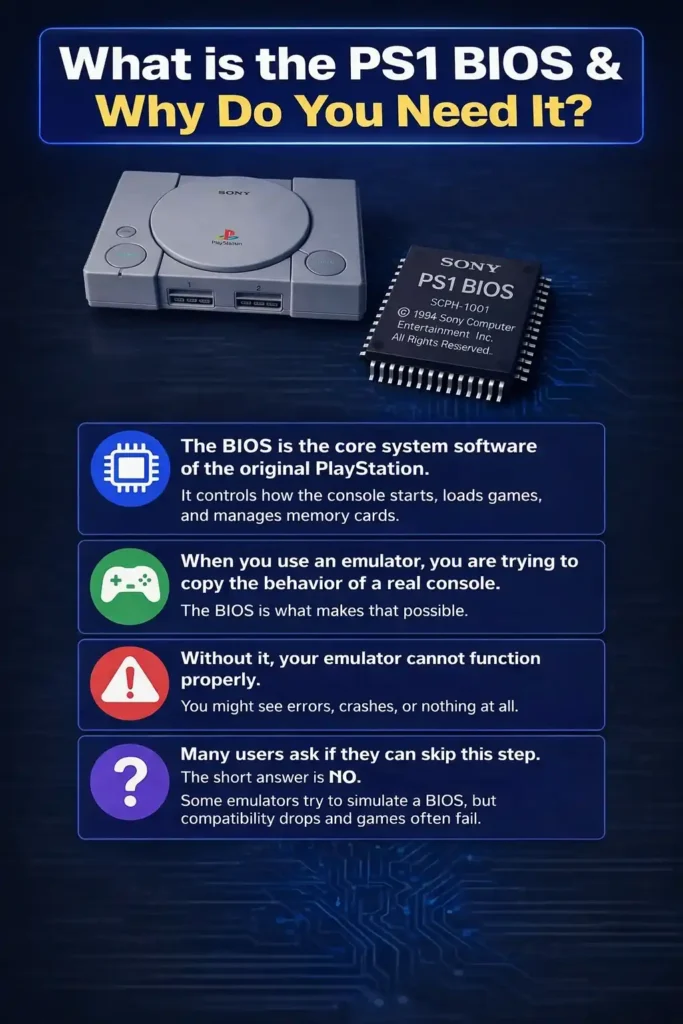
The BIOS is the core system software of the original PlayStation. It controls how the console starts, loads games, and manages memory cards.
When you use an emulator, you are trying to copy the behavior of a real console. The BIOS is what makes that possible.
Without it, your emulator cannot function properly. You might see errors, crashes, or nothing at all.
Many users ask if they can skip this step. The short answer is no. Some emulators try to simulate a BIOS, but compatibility drops and games often fail.
PS1 BIOS Versions by Region
Not all BIOS files are the same. Each one is designed for a specific region, and using the wrong one can lead to problems. You may face issues like game crashes, a black screen when starting, or region-related errors that prevent the game from running properly.
• SCPH5501.BIN
Use SCPH1001 for highest compatibility.
• SCPH7502.BIN
PAL may run slower on NTSC BIOS.
Supported Emulators
Most modern emulators require a BIOS file to run properly. The most commonly used ones include DuckStation, ePSXe, and RetroArch.
DuckStation is usually the easiest option. It runs smoothly on both PC and Android and gives better performance with less setup.
ePSXe is older but still works well, especially on low-end systems. Many users still prefer it for its simplicity.
RetroArch is more advanced. It offers more control but requires proper setup. If you are new, it may feel confusing at first.
PS1 BIOS Download (All Regions)
Before you download any BIOS file, there are a few things you should know.
A valid BIOS file is usually in .bin format and has a size close to 512 KB. If the file size is very different, it may not work.
The most common files you’ll come across include:
Always extract the file if it is inside a zip folder. Emulators do not read compressed files.
Also, avoid renaming files randomly. Even small changes can stop the emulator from detecting them.
How to Setup PS1 BIOS (Step-by-Step)
Setting up the BIOS is simple once you follow the correct steps. Most errors happen when the file is placed in the wrong folder or not selected in settings.
- Download the PS1 BIOS file
- Extract the file if it is in .zip format
- Open your emulator
- Go to Settings or Configuration
- Find the BIOS section
- Click Select BIOS
- Choose the extracted .bin file
- Save settings and restart the emulator
- Download the BIOS file
- Extract it using a file manager app
- Open your emulator
- Go to Settings
- Find the BIOS option
- Select the BIOS file from storage
- Save and restart the app
- Each emulator handles BIOS slightly differently
- For ePSXe: Open Config → Go to BIOS settings → Manually select the BIOS file
- Open Settings
- Go to BIOS directory
- Select the folder where BIOS is stored
- Place BIOS file inside the system folder
- Restart the emulator
- It will detect the file automatically
PS1 BIOS Folder Location & File Setup
One of the most common questions is where to place the BIOS file.
Most emulators use a folder named “bios” or “system.” If the file is not inside the correct folder, the emulator will not detect it.
For example, DuckStation often uses a path inside its documents folder. RetroArch uses a system directory, while ePSXe has its own BIOS folder.
The key thing is consistency. The file must be:
If any of these are wrong, the setup will fail.
Best PS1 BIOS for Performance & Compatibility
Many users think a BIOS file improves performance directly. That’s not fully true.
Performance mostly depends on your emulator and device. However, using the right BIOS improves compatibility and reduces errors.
SCPH1001 is the safest option for most users. It works well across different emulators and devices.
If you face issues with a specific game, switching to a region-specific BIOS can fix it.
Common PS1 BIOS Errors & Fixes
Most BIOS problems look scary, but they are usually easy to fix. In most cases, it’s just a small mistake in setup.
- File is missing
- File is not selected
- Wrong folder location
- Place the file in the correct BIOS folder
- Select it inside emulator settings
- Restart the emulator
- File is still in .zip format
- Wrong file name
- Extract the file
- Make sure name is correct (like SCPH1001.BIN)
- BIOS region does not match the game
- Use the correct region BIOS (USA, Europe, or Japan)
- Weak device
- Wrong emulator settings
- Switch graphics mode (Vulkan/OpenGL)
- Lower resolution
- Try a better emulator like DuckStation
- Emulator crashes
- BIOS fails to load
- Download a clean BIOS file
- Check file size (around 512 KB)
Is PS1 BIOS Legal?
This is a common concern. The safe approach is to use a BIOS file from your own console.
Downloading files from random sources may violate copyright laws in some regions.
It’s always better to stay on the safe side.
PS1 Emulation Features Enabled by BIOS
The BIOS is not just a requirement. It also enables important features.
You get the original startup screen, proper memory card support, and better game compatibility.
Without it, the emulator experience feels incomplete and unstable.
FAQs
Conclusion
Once the BIOS is set correctly, most problems disappear. Your emulator will run smoothly, and games will load without issues.
The key is simple. Use the correct file, place it in the right folder, and match the region when needed.
If something goes wrong, it’s almost always one of these steps.