
PS2 BIOS Image
How to Use a PS2 BIOS Image for Emulators on PC and Android (2026 Guide)
The PlayStation 2 remains one of the most beloved gaming consoles, and thanks to emulators like PCSX2 for PC and AetherSX2 for Android, you can enjoy PS2 games without the original hardware. But there’s one essential requirement to get started: a PS2 BIOS Image. In this guide, we’ll cover everything you need to know to safely and legally use a PS2 BIOS Image in 2026, from extraction methods to emulator setup.

What Is a PS2 BIOS Image?
A PS2 BIOS image is a digital copy of the PlayStation 2’s firmware. BIOS stands for Basic Input/Output System, and it initializes hardware, loads games, and provides the foundation for all PS2 operations. Emulators require a BIOS image to mimic a real PS2 console, making it essential for playing PS2 games on PC or Android.
Without a BIOS, your emulator won’t recognize games or run properly, because the BIOS acts as the bridge between the software and the hardware architecture of the PS2.
Why Emulators Like PCSX2 and AetherSX2 Require a PS2 BIOS Image
Emulators such as PCSX2 and AetherSX2 do not contain Sony’s proprietary system software. They need the PS2 BIOS to:
- Initialize hardware components virtually.
- Load the game environment correctly.
- Ensure compatibility with various PS2 game titles.
Think of it this way: the BIOS is the system firmware of the PS2. Without it, the emulator can’t replicate the console’s functionality. Using the correct BIOS for your emulator ensures smooth performance and prevents errors such as black screens or missing BIOS warnings.
PS2 BIOS File Formats (.bin, .rom, .img) and BIOS Folder Location
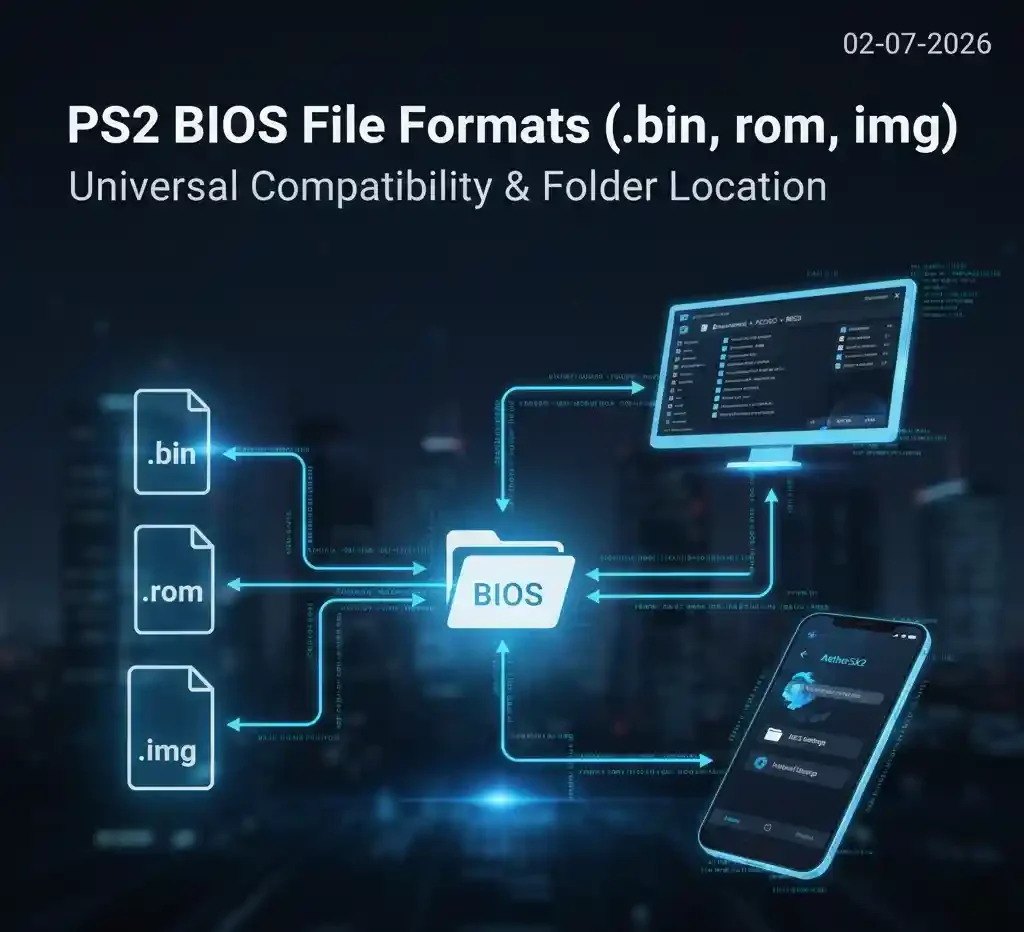
PS2 BIOS images come in multiple formats:
.bin– Most common and widely supported format..rom– Less frequent, sometimes used for older emulators..img– Disk image version, occasionally needed for specific setups.
To use a BIOS image on your emulator:
- Place the BIOS file in your emulator’s designated BIOS folder.
- On PCSX2 (PC), this is typically under
Documents > PCSX2 > BIOS. - On AetherSX2 (Android), you can select the BIOS from the app settings and store it in internal storage or a secure folder.
Maintaining the BIOS in the correct directory ensures the emulator detects it automatically, reducing the risk of errors during gameplay.
PS2 BIOS Regions Explained (NTSC-U, PAL, NTSC-J)
The PlayStation 2 had different BIOS versions based on regions, which affects game compatibility. Here’s a quick guide:
| Region | Code | Countries |
|---|---|---|
| NTSC-U | USA | North America |
| PAL | Europe | Europe, Australia |
| NTSC-J | Japan | Japan, Asia |
Choosing the correct PS2 BIOS region is crucial. Using the wrong BIOS may prevent games from loading, cause errors, or produce a black screen. Always match the BIOS region to your games or use region-free versions where available.
How to Extract a PS2 BIOS Image from Your Console (Legal Method)
Legal Notice: Downloading BIOS images from the internet is illegal and unsafe. The legal method involves extracting the BIOS from your own PS2 console.
- Required tools: USB drive, memory card, and uLaunchELF.
- Boot your PS2 with uLaunchELF installed.
- Navigate to the BIOS dump option.
- Copy the BIOS files to your USB drive.
- Transfer them to your PC or Android device for emulator use.
This ensures your BIOS is personal, legal, and free from malware. Remember, only BIOS files extracted from a console you own are legally compliant.
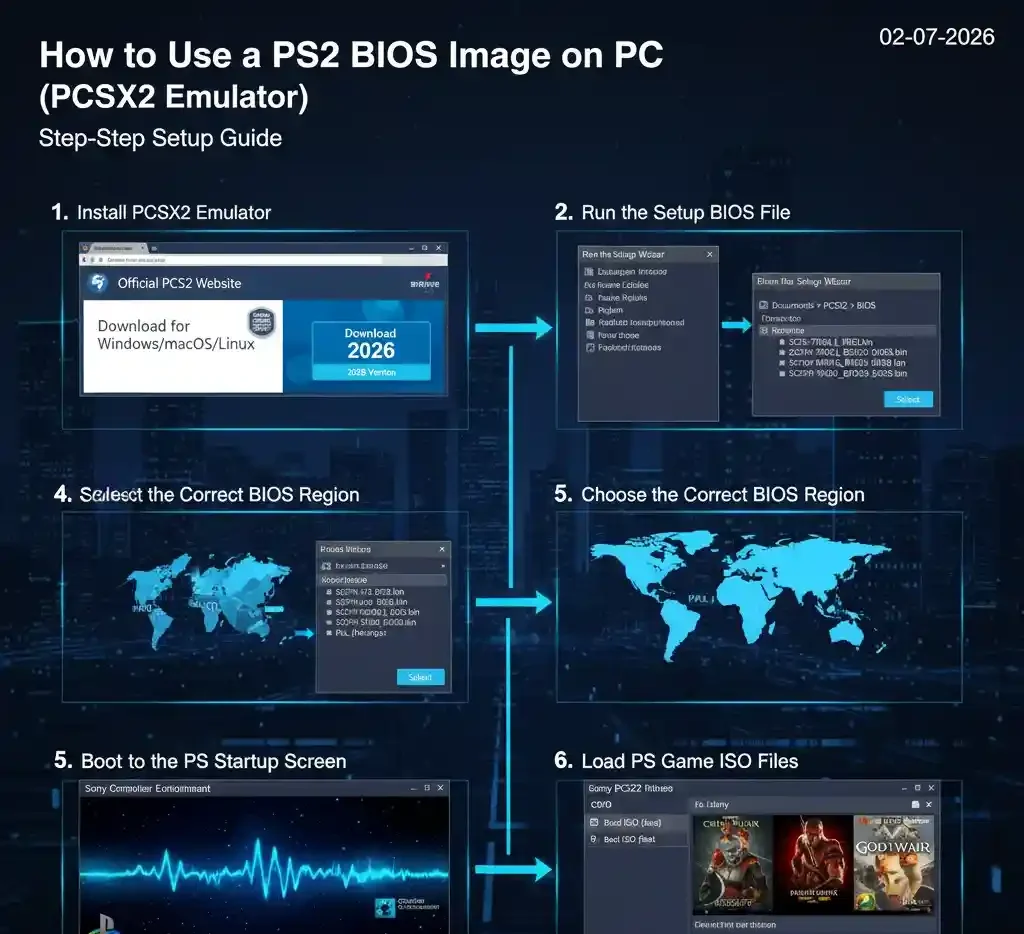
How to Use a PS2 BIOS Image on PC (PCSX2 Emulator)
Install PCSX2 Emulator
Download the latest PCSX2 version (2026) from the official website. Follow installation instructions for Windows, macOS, or Linux.
Run the Setup Wizard
The first launch will open the PCSX2 Setup Wizard, guiding you through language, plugins, and initial configuration.
Select the PS2 BIOS File
In the wizard, navigate to your BIOS directory and select the correct file. PCSX2 will automatically detect compatible files and display them.
Choose the Correct BIOS Region
Verify the region of your BIOS matches the games you intend to play. Selecting the wrong region can cause issues like unrecognized games or startup errors.
Boot to the PS2 Startup Screen
Once configured, PCSX2 will display the familiar PS2 startup animation, indicating the BIOS is functioning properly.
Load PS2 Game ISO Files
Finally, load your PS2 game ISO by selecting it from the “CDVD” menu and pressing Boot ISO (fast). Your game should start smoothly if the BIOS is correctly configured.
How to Use a PS2 BIOS Image on Android (AetherSX2)
Install Emulator App
Download AetherSX2 from the official store or APK source. Ensure your device meets minimum requirements for PS2 emulation.
Open BIOS Settings
Navigate to Settings > BIOS within the emulator. Here, you can select or import a BIOS file.
Select BIOS File
Choose your previously extracted PS2 BIOS image stored on your device. AetherSX2 supports .bin files.
Restart and Check Boot Screen
Restart the emulator to see the PS2 startup screen. This confirms the BIOS is detected and ready.
Load and Play PS2 Games
Load your PS2 ISO or game files. You can now enjoy PlayStation 2 games on your Android device just like a real console.
Common PS2 BIOS Errors and Fixes
Even with the right BIOS, errors can occur. Here’s how to troubleshoot common issues:
PS2 Emulator Missing BIOS Fix
Ensure the BIOS file is in the correct folder and matches the required file format.
PS2 Emulator Black Screen Fix
Check that the region code matches your game and confirm that plugins are correctly configured.
BIOS Not Detected in PCSX2
Re-scan the BIOS folder or ensure the file permissions allow the emulator to access the file.
PS2 Emulator Not Loading Games
Confirm the ISO file is intact and compatible with your emulator version.
Wrong BIOS Region Problems
Always match BIOS region with your game. For multi-region games, consider using region-free BIOS extracted from your console.
Is Using a PS2 BIOS Image Legal? (U.S. Copyright Explanation)
Copyright Notice: Using BIOS images is legal only under certain conditions:
- The BIOS is copied from a PS2 you own.
- You are using it for personal use.
- Distribution or download from the internet without permission is illegal.
All PS2 BIOS files are copyrighted by Sony Interactive Entertainment, so avoid unauthorized downloads to maintain copyright compliance. Extracting BIOS from your console ensures your emulator setup is both safe and legal.
Best Practices and Safety Tips for Using a PS2 BIOS Image
Keep BIOS in Secure Folder
Store your BIOS in a dedicated folder with restricted access to prevent accidental deletion or corruption.
Backup PS2 BIOS and Game Saves
Always maintain a backup of your BIOS and saved games. This protects your data in case of hardware failure.
Use Trusted Emulator Sources
Download emulators only from official websites to avoid malware.
Avoid Downloading BIOS from Internet
Never download BIOS files from third-party sites. They may contain viruses or infringe copyright laws.
FAQs About PS2 BIOS Image
Final Setup Checklist (Quick Recap)
- Extract BIOS from your PS2 console legally.
- Store BIOS in the correct folder.
- Install emulator PCSX2 or AetherSX2).
- Select BIOS and match the region.
- Load ISO files and test startup screen.
- Keep backups and follow safety practices.
Final Thought
Using a PS2 BIOS image correctly is the key to unlocking the full potential of PS2 emulators on both PC and Android. By following legal extraction methods, choosing the correct region, and maintaining safe storage practices, you can enjoy your favorite PS2 classics without risking copyright issues or emulator errors.
This guide gives you everything you need for a smooth, reliable, and safe emulation experience in 2026—from understanding BIOS formats to troubleshooting common problems. With this setup, your emulator is not just functional—it’s optimized for performance, legality, and peace of mind.
Emulation isn’t just about playing games; it’s about recreating the PS2 experience responsibly, and now you have the tools to do it the right way.